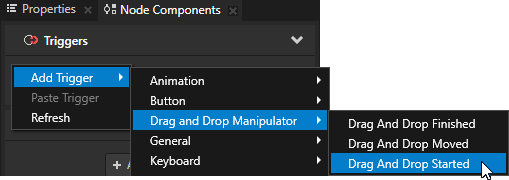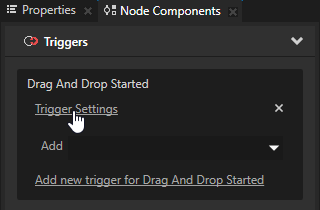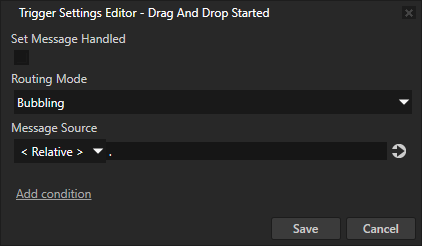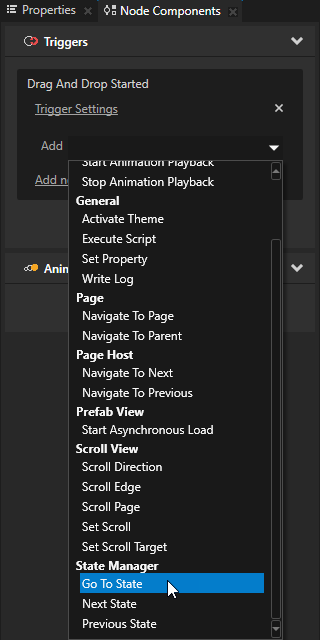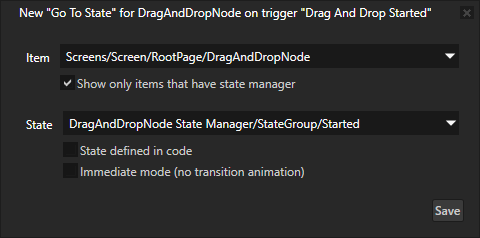
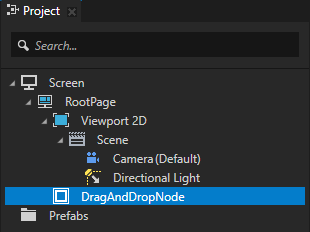
For example, create an Empty Node 2D node and name it DragAndDropNode.
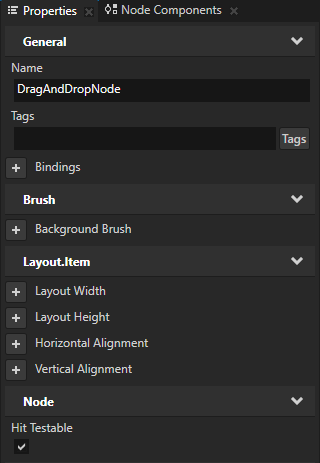
When you enable this property you enable the user to pick a node.
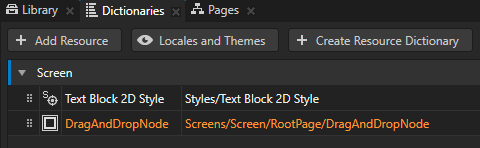
Kanzi Studio creates an alias pointing to the node from which you created the alias and adds it to the resource dictionary of its nearest ancestor node that contains a resource dictionary.
Access alias target nodes using the
# sign followed by the name of the alias.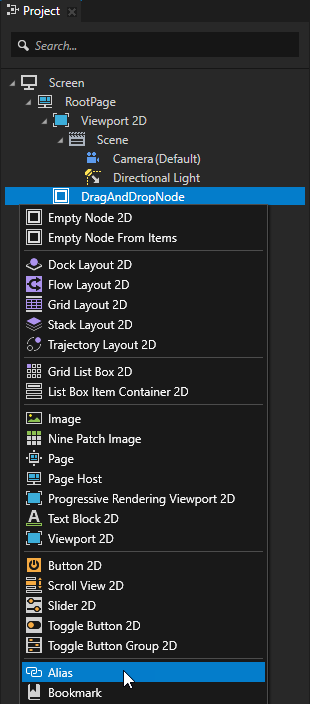
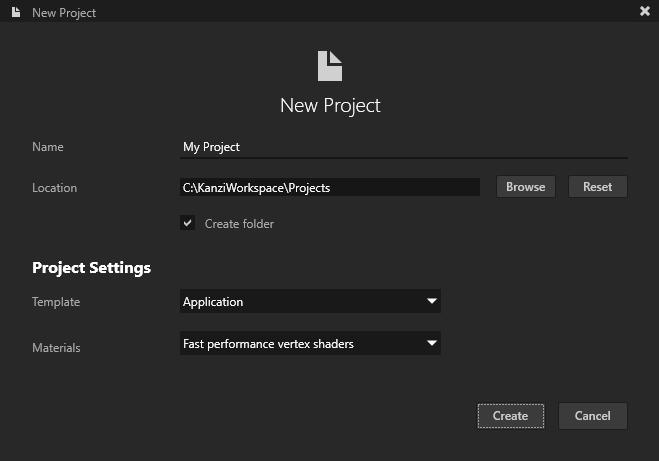
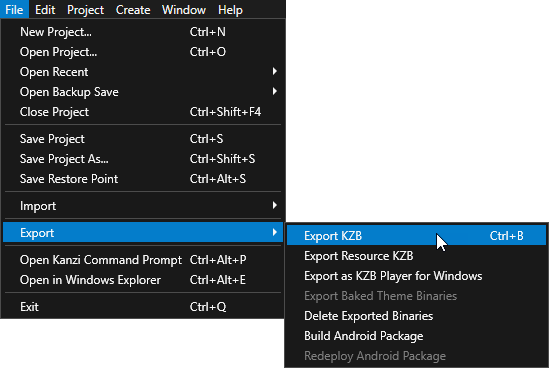
Kanzi Studio creates the kzb file and configuration files from your Kanzi Studio project. Kanzi Studio stores the exported files in <KanziWorkspace>/Projects/<ProjectName>/Application/bin or the location you specify in the Binary Export Directory property in > . The kzb file contains all nodes and resources from your Kanzi Studio project, except the resources you mark in a localization table as locale packs.
When you run your Kanzi application from Visual Studio, your Visual Studio solution reads these files to create your Kanzi application.
- Create the handlers for the drag-and-drop messages.
For example, after the public section of the class which implements the logic of your application add:private: // Handler for theDragAndDropManipulator::StartedMessagemessage from 2D nodes // that have an input manipulator which generates drag-and-drop messages. // This prepares the 2D node for dragging. void onDragStarted(DragAndDropManipulator::StartedMessageArguments& messageArguments) { // Get from the message arguments the node that the user drags. Node2DSharedPtr dragAndDropNode = dynamic_pointer_cast<Node2D>(messageArguments.getSource()); if (!dragAndDropNode) { return; } // Save the point from which the user started dragging the node, // relative to the origin (by default the top left corner) of the node. m_dragGrabOffset = messageArguments.getPoint(); // When starting a drag-and-drop gesture on the node, bring the node to front. dragAndDropNode->moveToFront(); } // Handler for theDragAndDropManipulator::MovedMessagemessage from 2D nodes // that have an input manipulator which generates drag-and-drop messages. // This translates (moves) the node by the distance the user drags it. void onDragMoved(DragAndDropManipulator::MovedMessageArguments& messageArguments) { // Get from the message arguments the node that the user drags. Node2DSharedPtr dragAndDropNode = dynamic_pointer_cast<Node2D>(messageArguments.getSource()); if (!dragAndDropNode) { return; } // Move the node by traveled distance given by getPoint, relative to the origin of the node. // To keep dragging from the same point on the node, subtract the grab offset. SRTValue2D transform = dragAndDropNode->getLayoutTransformation(); transform.translate(messageArguments.getPoint() - m_dragGrabOffset); dragAndDropNode->setLayoutTransformation(transform); } // Offset from the top left corner of the DragAndDropNode where the user pressed down or clicked on it. Vector2 m_dragGrabOffset; - In the
onProjectLoaded()function create aDragAndDropManipulatorand subscribe to its messages.
For example, add:virtual void onProjectLoaded() KZ_OVERRIDE { ScreenSharedPtr screen = getScreen(); Domain* domain = getDomain(); // Get the DragAndDropNode using its alias. NodeSharedPtr dragAndDropNode = screen->lookupNode<Node>("#DragAndDropNode"); // Create an input manipulator that generates drag-and-drop messages. DragAndDropManipulatorSharedPtr nodeDragAndDropManipulator = DragAndDropManipulator::create(domain); // Add the input manipulator to the DragAndDropNode. dragAndDropNode->addInputManipulator(nodeDragAndDropManipulator); // Set the duration of the long press before the drag-and-drop starts to 200 ms. The default is 500 ms. // This is the amount of time the user has to press the node before they can start dragging it. nodeDragAndDropManipulator->setPressDuration(chrono::milliseconds(200)); // Subscribe to theDragAndDropManipulator::StartedMessagemessage at the DragAndDropNode node. // TheDragAndDropManipulatorgenerates this message when the user has pressed the node // for the duration set byDragAndDropManipulator::setPressDuration. dragAndDropNode->addMessageHandler(DragAndDropManipulator::StartedMessage, bind(&MyProject::onDragStarted, this, placeholders::_1)); // Subscribe to theDragAndDropManipulator::MovedMessagemessage at the DragAndDropNode node. // TheDragAndDropManipulatorgenerates this message when the finger or mouse moves. dragAndDropNode->addMessageHandler(DragAndDropManipulator::MovedMessage, bind(&MyProject::onDragMoved, this, placeholders::_1)); }
In the application long-press and drag the node for which you enabled the drag-and-drop gesture.